- Click one of the versons of SPSS above to be sent to your Office 365 login
- Enter your email address
- Student: username@caledonian.ac.uk
- Staff: username@gcu.ac.uk
- Enter your password
Staff may be asked to complete a MFA check - Click Download on the upper left of the window
- Open the folder it was downloaded to
- Double click the SPSS install file
- Follow the install steps, clicking any positive prompts.
You will require the SPSS Authorisation code available here to activate the licence for SPSS
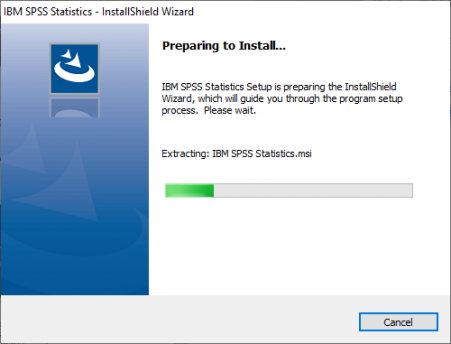
Click Next >
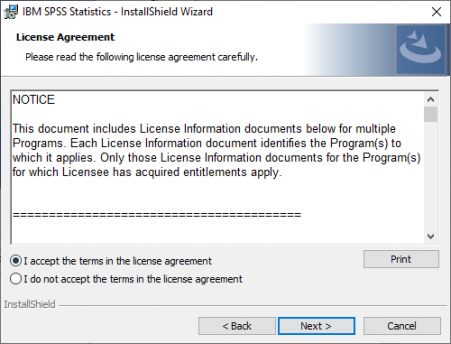
Ensure I accept the terms in the licence agreement is selected
Click Next>
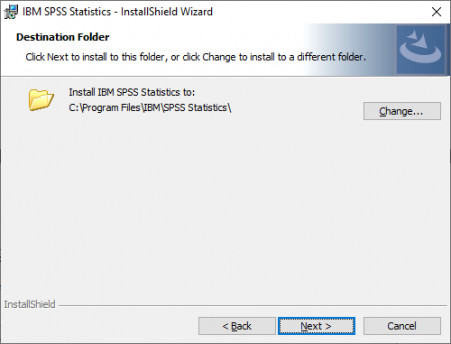
Choose a location where you would like SPSS to be installed. The default can be left for simplicity and click Next >
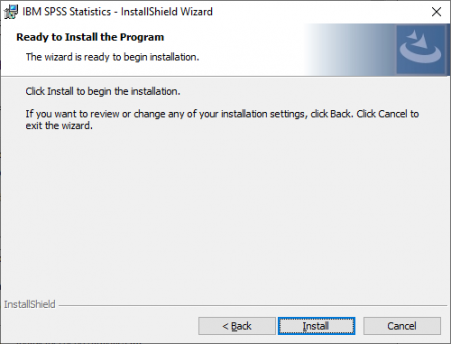
Confirm the installation by click Install
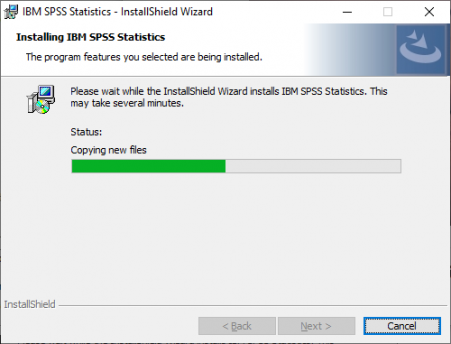
This can take some time to install. Please be patient
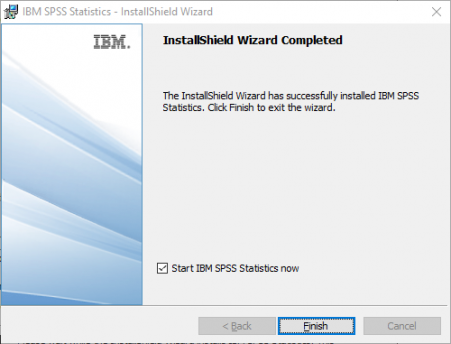
If you are ready to use SPSS, ensue Start IBM SPSS Statistics now is ticked and click Finish
Click Launch Licence Wizard
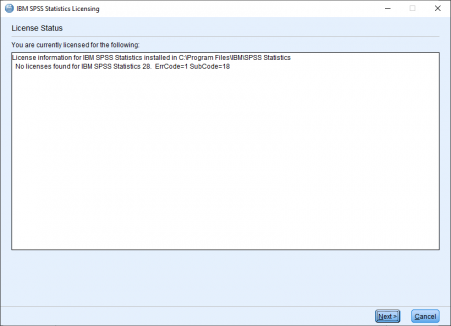
The next screen should look similar to the below
Click Next >
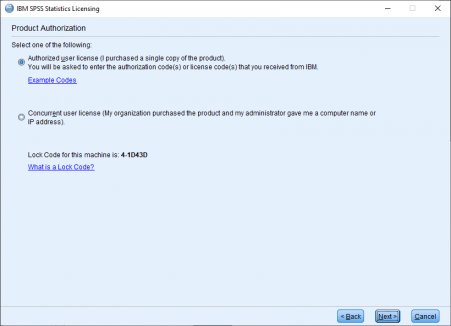
Ensure the Click Authorized user licence (top) is selected
Click Next >
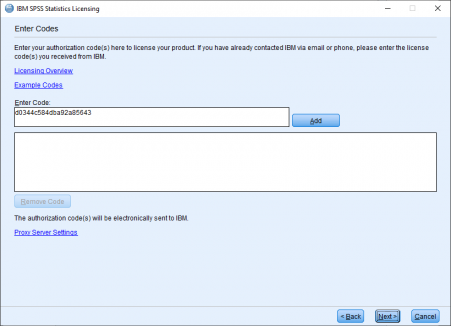
Enter the Authorisation code available to the right of the install link in the Enter Code box
Click Add
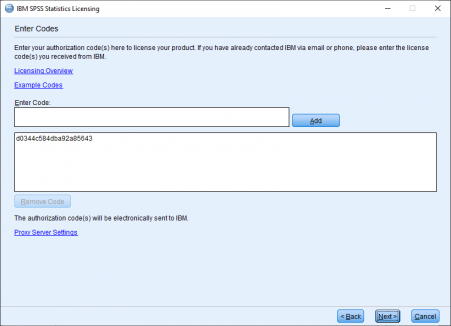
Click Next >
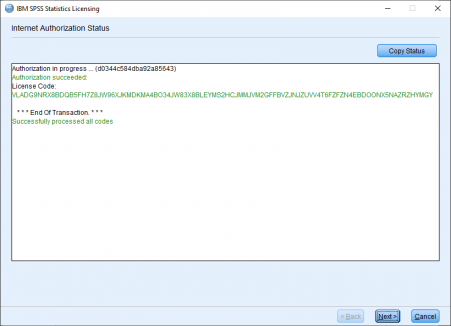
You should see similar to the next image
Click Next >
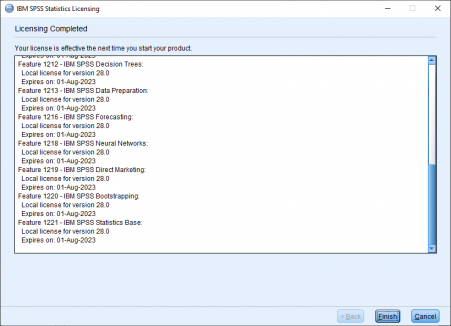
Click Finish to complete installation
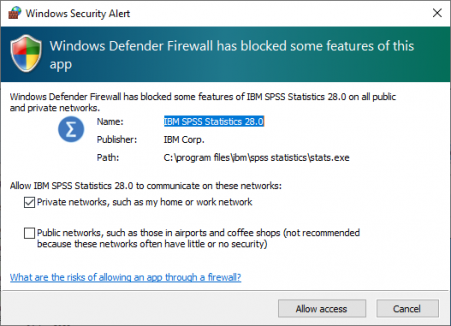
You may see a Firewall prompt at the end of the install.
Ensure Private networks, such as my home or work network is ticked
Click Allow access
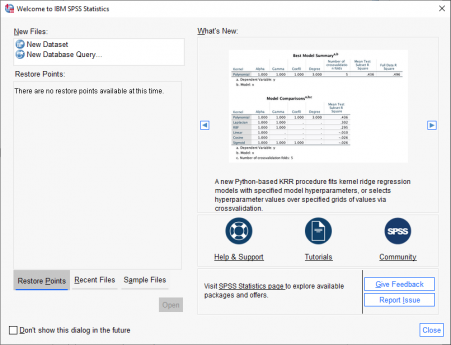
After a short time SPSS should load
- Click one of the versons of SPSS above to be sent to your Office 365 login
- Enter your email address
- Student: username@caledonian.ac.uk
- Staff: username@gcu.ac.uk
- Enter your password
Staff may be asked to complete a MFA check - Click Download on the upper left of the window
- Click the file that has downloaded
- Follow the install steps, clicking any positive prompts.
You will require the SPSS Authorisation code available here to activate the licence for SPSS